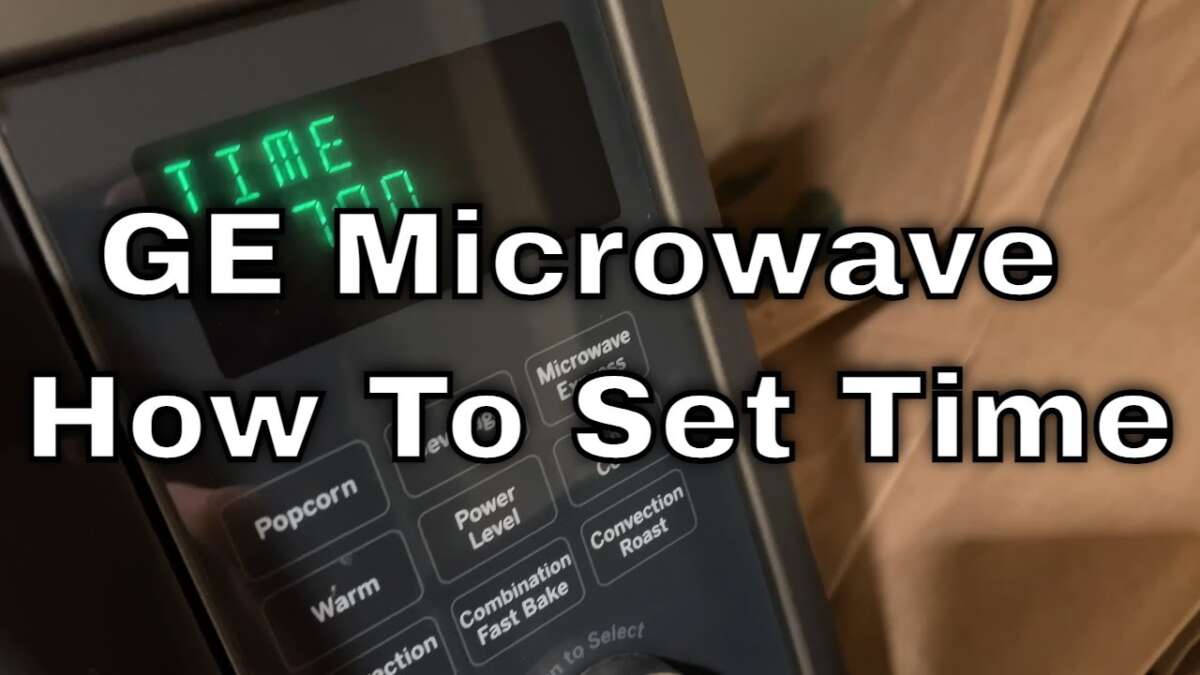
How To Set Time On Ge Microwave: Quick Step-By-Step Guide
Press the Clock button, enter the current time, then press Start or Clock to save the time.
I’ve set clocks on dozens of GE microwaves and taught friends and family the same steps. This guide walks you through how to set time on GE microwave models, why some units behave differently, quick model-specific instructions, troubleshooting tips, and practical advice from experience so you can get your microwave clock right in under a minute.
Why the clock matters and what to expect
Setting the clock on your GE microwave does more than show time. A correct clock can affect timed cook settings, automatic defrost schedules, and the power-save display. Most GE microwaves use a dedicated Clock or Kitchen Clock button, but some require holding a key or using the Settings menu.
What to expect when you learn how to set time on GE microwave:
- Simple button sequence on most countertop and over-the-range GE models.
- Slight variations between older and newer models or those with touchpads versus dials.
- Quick recovery after power loss if you know the right steps.

Quick universal steps: how to set time on ge microwave (most models)
These steps work for the majority of GE microwaves. Try them first before diving into model-specific instructions.
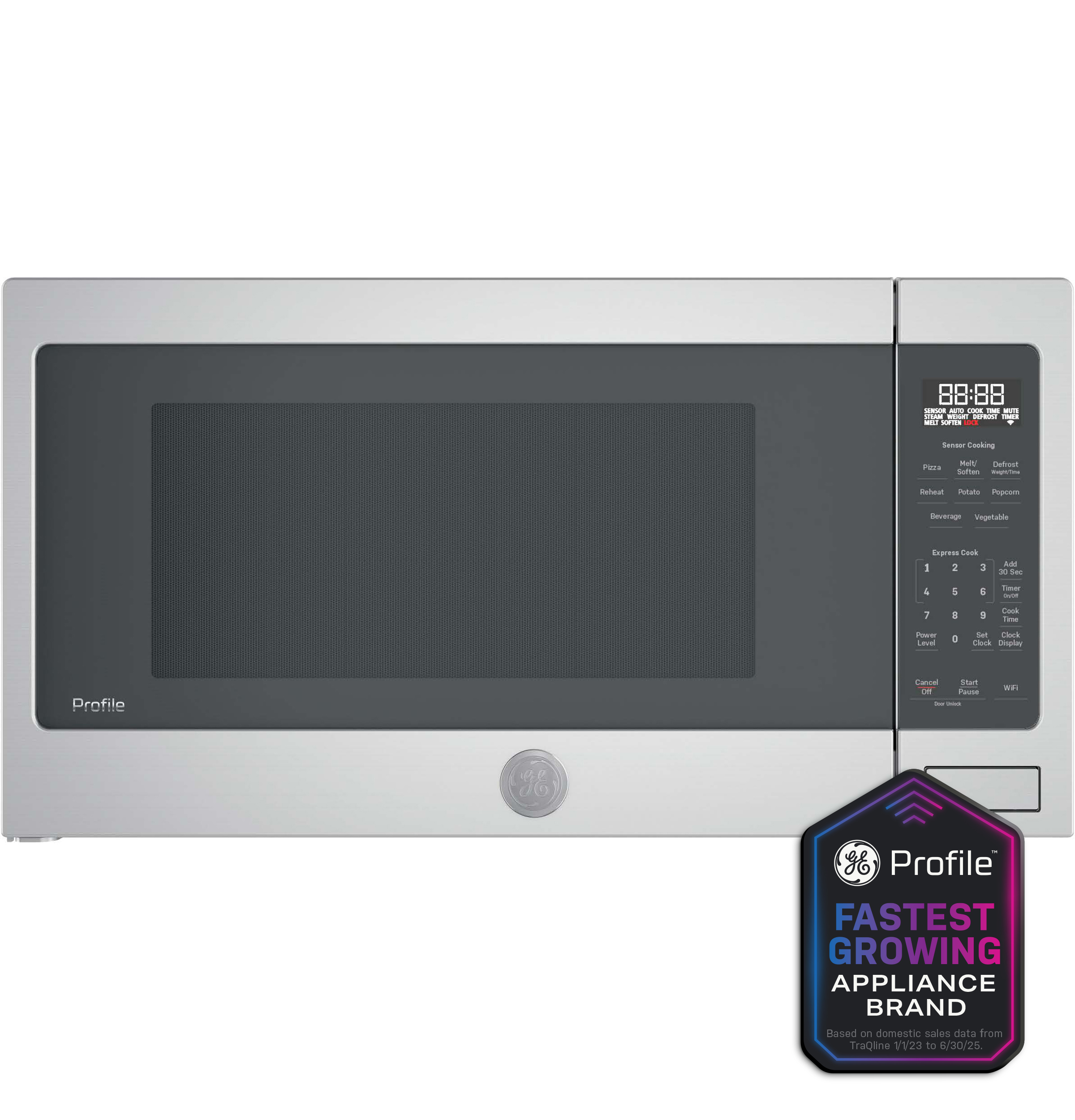
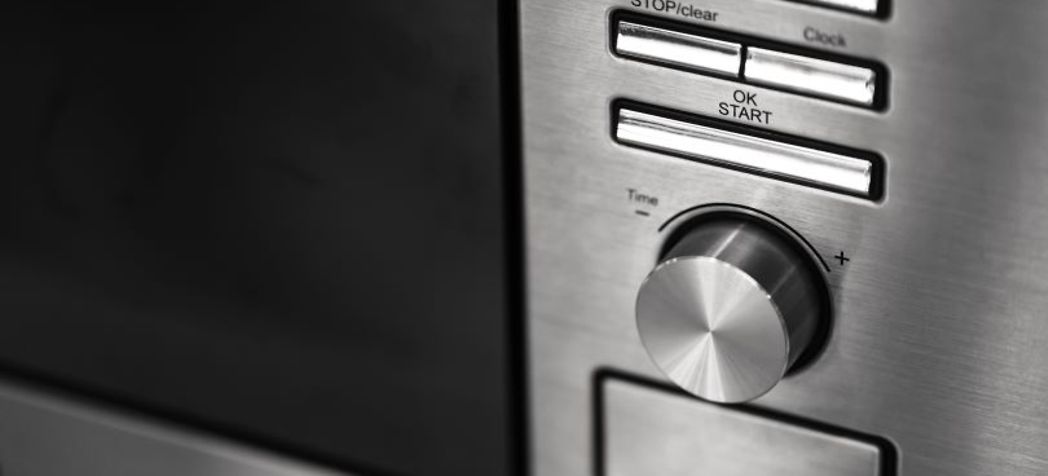
- Press the Clock or Kitchen Clock button once.
- Enter the current time using the number pad (example: 1 2 3 0 for 12:30).
- Press Start, Clock, or the Clock button again to confirm and save.
If the microwave uses 24-hour time, enter hours and minutes accordingly. If nothing happens, try holding the Clock button 2–3 seconds and then entering the time.
Model-specific walkthroughs: variations you’ll see
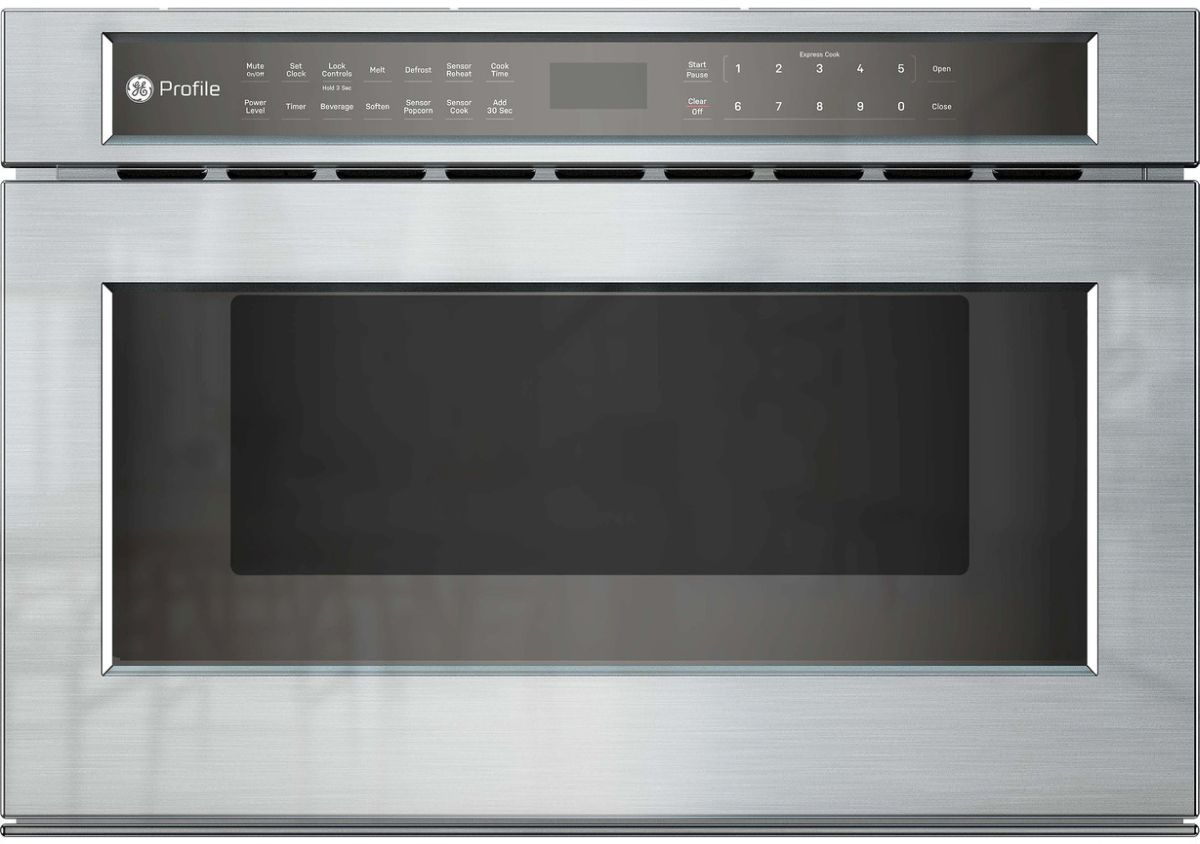
Different GE models name controls differently. Below are common variants so you can match steps to your unit.
GE countertop and basic over-the-range models
- Press Clock.
- Enter time.
- Press Start or Clock to confirm.
GE models with Settings or Menu button
- Press Settings or Menu.
- Select Clock using arrow keys.
- Enter time and press OK or Start.
GE models with touchscreen displays
- Tap Clock on screen.
- Use the numeric pad on screen to set time.
- Tap Save or Done.
Older analog or rotary models
- These rare models might have a manual dial or require a power cycle plus button combo; refer to the manual for exact details.
No matter which you use, practice the sequence once or twice. That makes it fast when you need to reset after a power outage.

Troubleshooting: common issues and fixes
If you can’t get the clock to set, try these fixes.
Clock won't accept numbers
- Ensure the microwave isn't in another mode like Cook or Timer.
- Press Clear or Cancel, then try Clock again.
Time resets after power outage
- Some models lose time when unplugged. Use a surge protector or set up a routine to reset the clock after outages.
Clock button missing
- Use the Settings/Menu path or hold the Start button when powering on if your model hides Clock under menus.
Display is dim or unresponsive
- Check the unit’s child lock or control lock. Turn lock off by holding the Lock or Clear/Off button for 3–5 seconds.
If none of these steps work, a quick factory reset or contacting GE support may help.
PAA-style questions you might search next
What if my GE microwave uses 24-hour time?
- Switch the input by entering hours using 00–23 format, or check Settings for AM/PM toggle. Some models default to 24-hour and require changing display format in the menu.
Can I set the clock without the manual?
- Yes. Most GE microwaves use the Clock button or Settings menu. Try the universal steps above and consult a model sticker or online manual if needed.
Why does my clock keep losing time?
- Power interruptions, internal battery issues, or software glitches can cause time loss. Use stable power or check for firmware updates.

Tips, best practices, and shortcuts from experience
From years of resetting clocks on GE microwaves, these small habits save time.
- Keep the model number handy. It’s usually on the door frame and helps find exact instructions online.
- After a power outage, set the clock first. Timers rely on it.
- If you teach others, show them two ways: quick button press and Settings menu. People remember one of the two.
- Use a surge protector to prevent repeated resets.
One mistake I made early on was assuming all GE models use the same Clock sequence. Learning to check the control labels first saved me time and frustration.

Safety and limitations
Basic clock setting has no major safety risk, but remember:
- Don’t pry open the control panel or attempt repairs to fix a clock issue.
- For display or electrical problems, contact a certified technician.
- Some GE microwaves cannot retain time during long power loss; this is a design limit, not a fixable user error.

How to find your GE microwave model number quickly
Knowing your model helps when instructions vary. Find it by:
- Looking on the inside door frame or the back of the unit.
- Checking paperwork or purchase email.
- Searching the model number online to view the exact user manual.
Personal experience: a short story that might help
I once helped a neighbor reset the clock on an older GE over-the-range microwave. The Clock button didn’t respond. We pressed Cancel, unplugged for 30 seconds, plugged back in, and used Settings to set the time. The simple power cycle resolved a temporary lockup. Lesson: a brief reset and knowing alternative menu paths can fix many clock issues.
Frequently Asked Questions of how to set time on ge microwave
How do I set the clock on a GE microwave that has a Kitchen Timer button?
Press the Clock or Kitchen Clock button, enter the time using the number pad, then press Start or Clock to confirm. If the timer button is active, press Clear first.
My GE microwave only shows 12:00 and won’t change. What now?
Try pressing and holding Clock for 2–3 seconds, then enter the time. If it still won’t change, power cycle the microwave by unplugging for 30 seconds and retry.
Does setting the clock affect programmed cook times?
No, setting the clock only changes the display time. Programmed cook times use separate memory unless the model ties them to the system clock for scheduled cooking.
Can I change from AM/PM to 24-hour format?
Some GE models allow switching in Settings or Menu. If there is no option, the microwave may be fixed to AM/PM format.
What should I do if the control panel is locked?
Disable the control lock by holding the Lock or Clear/Off button for 3–5 seconds. Then use the Clock button to set time as normal.
Wrap-up and next steps
You now know how to set time on GE microwave across most models, what to try when things go wrong, and quick tips I’ve learned from hands-on fixes. Set your clock first after a power loss, keep the model number handy, and use the Settings menu as a backup path when the Clock button hides. Try setting your microwave clock right now — it usually takes less than a minute. If you found this helpful, leave a comment with your model number or subscribe for more appliance tips.

Appliance Review Expert
Lucas Ramirez is a trusted voice at HomeFixGrid.com, known for his clear, practical, and creatively written guides that simplify appliance care for everyday homeowners. With a strong focus on hands-on testing and real-world problem-solving, Lucas brings expert insight into appliance reviews and troubleshooting techniques. Her work empowers readers to confidently maintain, repair, and choose the right appliances for their homes.