How To Set Clock On KitchenAid Microwave: Easy Guide
On most KitchenAid microwaves sold in the United States, press Clock, enter the time with the number pad, then press Start or Clock again to save it. The exact buttons can vary by model, so check the control panel or owner’s manual if these steps do not work.
Introduction
A correct clock makes it easier to use cooking timers, delay-start features, and other settings on a KitchenAid microwave. This guide applies to common KitchenAid countertop, over-the-range, and built-in microwave models used in U.S. homes.
The main difference between models is the button sequence. Some use a dedicated Clock button. Others place the clock setting under Settings, Options, or a menu key. You do not need to unplug the microwave or remove any panels to set the time.


What You Need Before Setting the Clock
You only need the microwave’s control panel and the current time. The microwave should be plugged in and showing either a blank display, flashing digits, or an incorrect time.
Before you begin:
- Make sure the microwave is not running.
- Clear any cooking program by pressing Cancel, Off, or Stop, depending on the model.
- Keep the current time nearby if you are setting the clock after a power outage.
- Check whether your model uses a 12-hour or 24-hour clock.
- If the control panel is locked, turn off the control lock first.
KitchenAid uses several control-panel designs. The button may be labeled Clock, Set Clock, Time of Day, Settings, or Options. The owner’s manual for the exact model is the best source when the panel does not match these steps.

How to Set the Clock on a KitchenAid Microwave
Try the standard method first. It works on many KitchenAid microwave models.
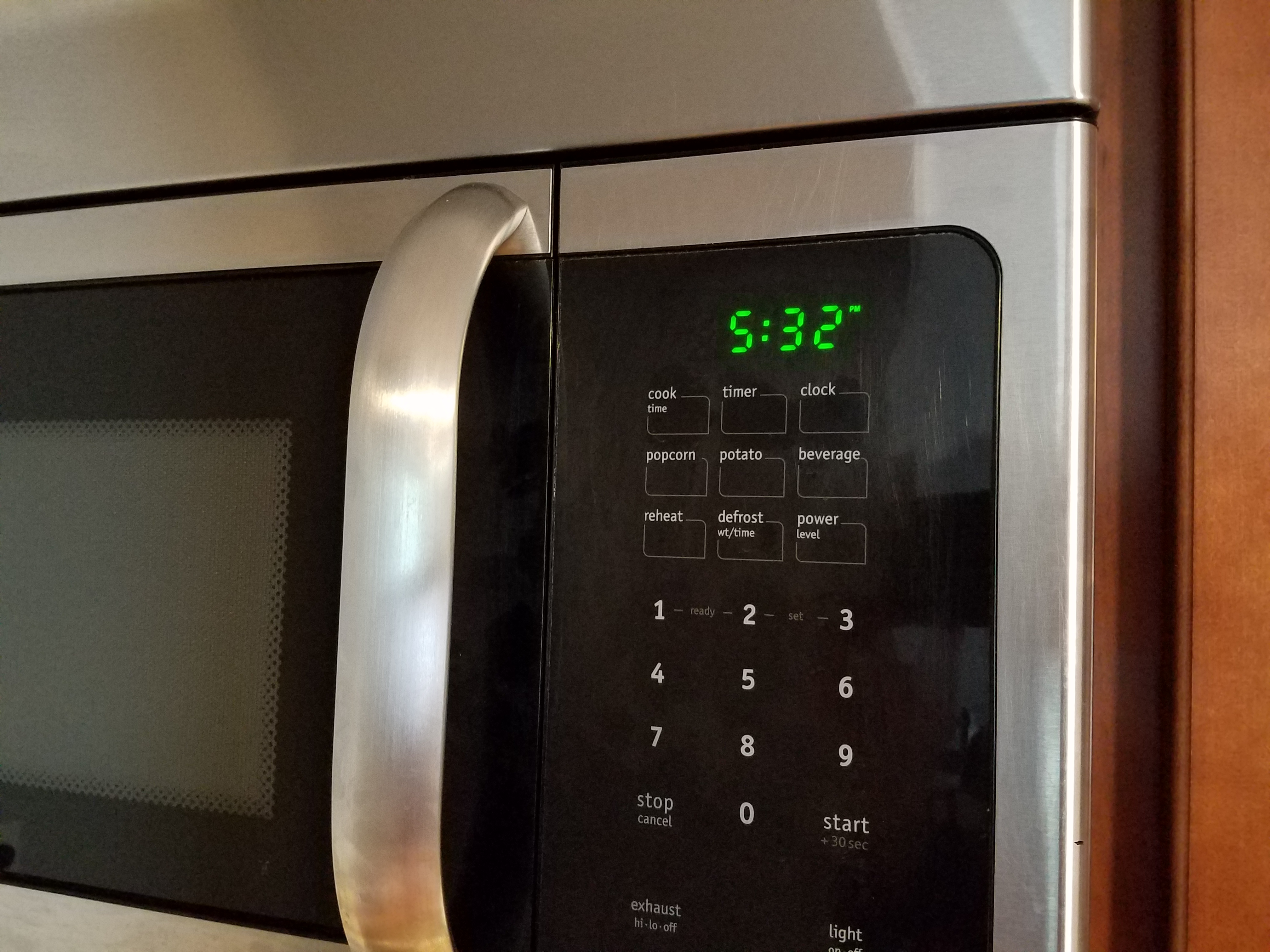
- Press Clock or Set Clock.
- Enter the current time using the number pad. For example, enter 7:35 for 7:35.
- Press Clock or Start to confirm.
- Check the display. The correct time should remain visible when the microwave is idle.
Some models ask you to choose AM or PM. If the display shows an AM/PM prompt, select the correct option before pressing Start.
Example: Setting 7:35 AM
For a model with a dedicated clock button:
- Press Clock.
- Press 7, 3, and 5.
- Select AM if the microwave asks.
- Press Start or Clock.
The display should now show 7:35.
If pressing Clock does not open the setting, try pressing and holding it for about three seconds. Some KitchenAid models use a long press to enter clock setup, while others place the feature inside a settings menu.

How to Set the Clock Without a Dedicated Clock Button
Some KitchenAid microwaves do not have a separate Clock key. On these models, use the settings menu.


A common menu method is:
- Press Settings, Options, or Menu.
- Use the number pad or arrow keys to find Clock or Time of Day.
- Press Start or select the clock option.
- Enter the current time.
- Choose AM or PM, if requested.
- Press Start, Enter, or the menu button to save the setting.
The names and order can differ. Look for terms such as:
- Clock
- Set Clock
- Time
- Time of Day
- Display Settings
- 12/24 Hour Format
If the display shows a menu number instead of words, the owner’s manual will identify the correct number. KitchenAid model numbers are often found inside the microwave door, on the frame, or on a label inside the cabinet area.
How to Change the Clock Between 12-Hour and 24-Hour Time
Many KitchenAid microwaves use a 12-hour clock by default. Some models let you switch to a 24-hour format, also called military time.
To look for this option:
- Press Settings, Options, or Clock.
- Find Clock Format, 12/24 Hour, or a similar setting.
- Select 12 Hour or 24 Hour.
- Press Start or Enter.
- Set the current time again if the microwave asks.
In a 12-hour format, 7:35 may mean either 7:35 AM or 7:35 PM, so the microwave may ask you to confirm AM or PM. In a 24-hour format, 7:35 PM appears as 19:35.
Not every KitchenAid model offers both formats. If no format option appears, the display is likely fixed to the format chosen by the manufacturer.
What to Do If the Clock Will Not Set
If the time disappears or the microwave does not accept the entry, check the most likely causes first.
The control lock is on
A control lock prevents unwanted button presses. The display may show LOC, LOCK, or a padlock symbol.
Press and hold the button marked Control Lock, Cancel, or the padlock symbol for several seconds. The exact button and hold time vary by model. Once the lock turns off, try the clock steps again.
The microwave is still in a cooking mode
A timer or cooking cycle can block clock changes. Press Cancel, Off, or Stop once or twice, then wait for the normal idle display.
Do not confuse the kitchen timer with the clock. A timer counts down but does not change the time shown on the microwave.
The wrong confirmation button was used
Some models save the time with Start. Others use Clock, Enter, or a second press of the clock key. If the entered time disappears, repeat the process and try the button shown on the panel as the confirmation key.


The power supply was interrupted
A power outage can reset the clock or make the display flash. Set the clock again after power returns. If the display repeatedly resets while the home power is stable, the microwave may have an electrical or control problem.
Do not open the microwave cabinet or attempt an internal repair. Microwave ovens contain high-voltage parts that can remain dangerous even after the appliance is unplugged. Contact KitchenAid support or a qualified appliance technician for internal faults.

Why the KitchenAid Microwave Clock Keeps Losing Time
A clock that resets once after a power outage is usually behaving normally. A clock that loses its setting again and again may indicate a power or control issue.
Check these points:
- Confirm that other appliances on the same circuit are working normally.
- Make sure the microwave plug fits firmly in the outlet.
- Check for a tripped circuit breaker.
- Look for a flashing display after an outage.
- Note whether the microwave loses power during use or only loses the time.
If the microwave turns off, sparks, smells burnt, makes unusual sounds, or trips the circuit breaker, stop using it. Unplug it if you can do so safely, and arrange service. Do not continue testing a microwave that shows signs of an electrical fault.
How to Find the Correct KitchenAid Microwave Manual
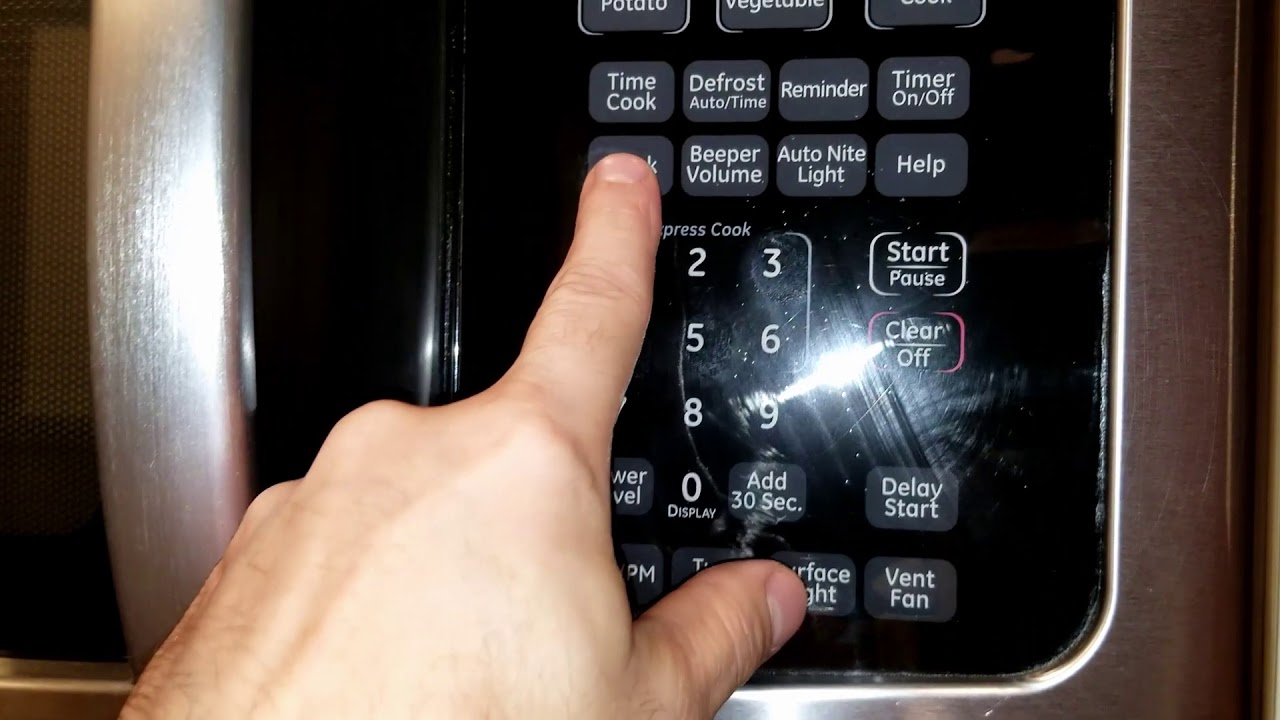
The exact model number is the fastest way to find the right clock instructions. Look for the label:
- Inside the microwave door
- Along the door frame
- On the underside of an over-the-range unit
- On the back or side of a countertop model
- In the original paperwork
Search the official KitchenAid support site using the model number, then open the owner’s manual or use-and-care guide. Manuals are more reliable than general button sequences because KitchenAid changes the controls across product families and model years.
Do not use instructions for a similar-looking microwave unless the model number and control panel match. Two KitchenAid microwaves can have different clock menus even when both have a Clock button.

Common Mistakes to Avoid
The most common mistake is entering the time correctly but not confirming it. If the display returns to the old time, press Start, Enter, or Clock after entering the digits.
Other mistakes include:
- Entering 735 when the model requires 0735
- Forgetting to choose AM or PM
- Pressing Timer instead of Clock
- Trying to set the clock while the control lock is active
- Leaving a cooking cycle or menu open
- Following instructions for a different model
- Assuming a flashing clock means the microwave is unsafe
A flashing clock usually means the microwave lost power or needs its time set. It does not, by itself, indicate a microwave leak or radiation problem.


Quick Troubleshooting Table
Use this table to match the symptom with the best next step.
| Symptom | Likely cause | What to try |
|---|---|---|
| Clock flashes | Power interruption | Set the time again |
| Buttons do nothing | Control lock is active | Turn off Control Lock |
| Time vanishes after entry | Wrong save button | Try Start, Enter, or Clock |
| Timer counts down instead | Timer mode selected | Cancel it and choose Clock |
| Clock resets repeatedly | Power or control issue | Check the outlet and request service |
| No Clock button appears | Menu-based controls | Open Settings or Options |
| AM and PM seem reversed | Incorrect format selection | Reset the time and confirm AM/PM |
Frequently Asked Questions
How do I set the clock on a KitchenAid microwave after a power outage?
Press Clock or open the Settings menu, enter the current time, choose AM or PM if prompted, and press Start, Enter, or Clock to save it. A power outage often causes the display to flash until the time is reset.
Why does my KitchenAid microwave say “LOC”?
“LOC” usually means the control lock is active. Press and hold the button marked Control Lock, Cancel, or the padlock symbol. The correct button depends on the model.
Can I set the clock while the microwave is cooking?
Usually, you must stop or cancel the cooking cycle first. Press Cancel, Off, or Stop, then set the clock from the idle display.
How do I remove the clock from the display?
Some KitchenAid models allow the clock display to be turned off through Settings or Options. Other models always show the time when idle. Check the manual for your model before changing the display setting.
What should I do if the clock keeps resetting?
Check the outlet and circuit breaker first. If the microwave repeatedly loses the time while the home power is stable, stop using it if it also loses power, sparks, smells hot, or trips the breaker. Arrange service rather than opening the appliance.
Final Answer
To set the clock on most KitchenAid microwaves, press Clock, enter the time, select AM or PM when asked, and press Start or Clock to confirm. If your microwave has no Clock button, open Settings, Options, or Menu and look for Clock or Time of Day.
If the steps fail, turn off the control lock, cancel any active cooking program, and use the manual for the exact model. For repeated power loss or electrical symptoms, stop troubleshooting and contact a qualified appliance professional.

Appliance Review Expert
Lucas Ramirez is a trusted voice at HomeFixGrid.com, known for his clear, practical, and creatively written guides that simplify appliance care for everyday homeowners. With a strong focus on hands-on testing and real-world problem-solving, Lucas brings expert insight into appliance reviews and troubleshooting techniques. Her work empowers readers to confidently maintain, repair, and choose the right appliances for their homes.