How To Set Clock On Samsung Microwave Mc17T8000Cs: Guide
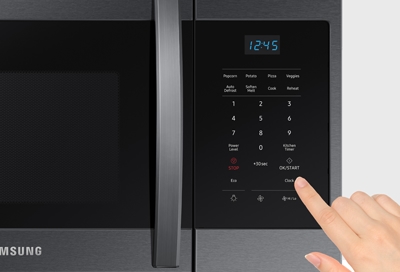
To set the clock on a Samsung MC17T8000CS microwave in the United States, press Clock, enter the current time with the number pad, and press OK/START. The clock uses the time format selected on the microwave, usually a 12-hour format for U.S. models.
Quick answer
- Press Clock on the control panel.
- Enter the current time using the number buttons.
- For 7:05, enter 7, 0, 5.
- For 11:30, enter 1, 1, 3, 0.
- Press OK/START.
- Check that the time appears on the display.
The clock should now be set.

What you need before setting the clock
You do not need food inside the microwave or any special tool. The microwave should simply have power, and the control panel must be unlocked.


Before you begin:
- Find the Clock button.
- Locate the number pad.
- Find the OK/START button.
- Check the current time on another clock or phone.
- Make sure the display is not showing a control-lock message.
If the microwave has just been installed or experienced a power outage, the clock may flash or show an incorrect time. This is normal. A power interruption can erase the stored time, so it must be entered again.
About the time format
The U.S. version of the Samsung MC17T8000CS is designed for use with American household power and common U.S. time settings. Depending on the setting selected, the microwave may display time in a 12-hour or 24-hour format.
If the microwave accepts your entry but shows an unexpected format, check the clock or option settings in the owner’s manual. Do not assume that a flashing time means the microwave is damaged.

Step-by-step: how to set the clock on the Samsung MC17T8000CS
Follow these steps in order.
1. Press the Clock button
Press Clock once. The time display should begin flashing or the microwave should be ready for a new time entry.
If nothing happens, press Stop/Clear once and try again. Make sure you press the button firmly but do not hold it unless the control panel indicates that a long press is needed.
2. Enter the current time
Use the number pad to enter the time.
For example:
| Current time | Number buttons to press |
|---|---|
| 6:15 | 6, 1, 5 |
| 7:05 | 7, 0, 5 |
| 10:40 | 1, 0, 4, 0 |
| 12:25 | 1, 2, 2, 5 |
Enter leading zeros when needed. For example, use 7-0-5 for 7:05 rather than only 7-5.


3. Press OK/START
Press OK/START to save the time. On the MC17T8000CS, this button confirms many entries, including clock settings.
Wait a few seconds after pressing the button. The display should stop flashing and show the new time.
4. Confirm the result
The clock is set successfully when:
- The display shows the time you entered.
- The numbers stop flashing.
- The microwave does not return to the old time.
- Pressing a cooking function does not cancel the clock setting.
If the time is wrong, repeat the process from the beginning. Press Stop/Clear first if the microwave remains in another mode.
What to do if the clock will not set
most clock problems come from an incomplete entry, a locked control panel, or a display setting. Check the simple causes first.
The Clock button does nothing
Press Stop/Clear once, then press Clock again. The microwave may still be waiting for a previous cooking command to finish.
If the display is dark, the microwave may be using an energy-saving display mode. Press the appropriate display or Eco control to wake the panel, then try again.
The time flashes but will not save
Make sure you entered a complete time. A four-digit entry is safest:
- Enter 07:05 as 7, 0, 5 if the model accepts a three-digit entry.
- If the display expects four digits, enter 0, 7, 0, 5.
Then press OK/START. Do not press a cooking shortcut instead, because that may start a cooking cycle rather than save the clock.
The microwave shows “LOC” or a lock symbol
A locked control panel can prevent clock changes. Cancel the lock using the child-lock procedure listed in the MC17T8000CS owner’s manual, then repeat the clock steps.
Avoid repeatedly pressing random buttons. Control-lock commands can vary by model and software version.
The clock resets again
If the clock resets after you unplug the microwave or after a power failure, set it again. If it loses the time while the microwave remains connected to power, check the wall outlet and circuit breaker.
A microwave that repeatedly loses its clock with stable power may need service. Do not remove the microwave’s outer cover. Microwaves contain high-voltage parts that can remain hazardous even when the unit is unplugged.


Common mistakes when setting the Samsung microwave clock
These mistakes are easy to make:
- Entering the time without a leading zero: Try 7-05 instead of 7-5.
- Forgetting OK/START: The microwave may not save the entry until you confirm it.
- Starting a cooking cycle by mistake: Use OK/START only after entering the time and make sure the microwave does not begin heating.
- Trying to set the clock while another function is active: Press Stop/Clear first.
- Assuming the clock is broken because the display is dark: Energy-saving mode can turn off the display.
- Ignoring a control lock: A locked panel may reject all normal button presses.
- Using the wrong time format: Check whether the display is set to 12-hour or 24-hour time.
The most reliable sequence is:
Stop/Clear, Clock, time numbers, OK/START
You may not need Stop/Clear every time, but it helps reset the control panel before a new entry.

How to change the clock after daylight saving time
When daylight saving time begins or ends in most parts of the United States, reset the clock by one hour.
For example, if the microwave shows 6:10 and the correct time is now 7:10:
- Press Stop/Clear.
- Press Clock.
- Enter 7, 1, 0.
- Press OK/START.
- Confirm that the display shows 7:10.
The microwave does not automatically update for daylight saving time unless it has a connected feature specifically designed to do so. Treat the displayed time as a manual setting.

Frequently asked questions
Does the Samsung MC17T8000CS clock show AM or PM?
A standard microwave clock may use a 12-hour display without showing a separate AM or PM indicator. That does not affect cooking, because microwave cooking times are independent of the clock.
If your unit offers a 24-hour setting or another time-format option, use the control-panel instructions in the owner’s manual to change it.
Why does the clock disappear when the microwave is not in use?
The microwave may have an energy-saving display mode enabled. Press the display, Eco, or another relevant control to restore the display. The exact behavior can depend on the selected settings.
Do I need to set the clock for the microwave to cook?
No. The microwave can usually heat food without a correct clock time. However, the clock may be needed for timed features and will flash after a power interruption until you set it.
What should I do if I entered the wrong time?
Press Stop/Clear, press Clock, enter the correct time, and press OK/START. If the wrong time remains, repeat the sequence and check whether the control panel is locked.
Will unplugging the microwave erase the clock?
It can. Unplugging the appliance or losing household power may clear the clock. Set the time again when power returns.


Final check
To set the clock on a Samsung MC17T8000CS, press Clock, enter the current time, and press OK/START. Use leading zeros when needed, clear any active function first, and check the control lock if the buttons do not respond.
If the clock keeps resetting while the microwave has steady power, stop troubleshooting at the control panel and contact Samsung support or a qualified appliance technician. Never remove the microwave cover yourself.

Appliance Review Expert
Lucas Ramirez is a trusted voice at HomeFixGrid.com, known for his clear, practical, and creatively written guides that simplify appliance care for everyday homeowners. With a strong focus on hands-on testing and real-world problem-solving, Lucas brings expert insight into appliance reviews and troubleshooting techniques. Her work empowers readers to confidently maintain, repair, and choose the right appliances for their homes.